
Account & billing
How to sign out of ElkNut (and switch accounts)
Signing out of ElkNut takes one tap — the only tricky part is that the button lives at the very bottom of the Account page, below every other card, so it is easy to miss if you do not scroll far enough.
Find the Sign Out button
Open Account from the icon in the top-right corner of the app, then scroll down. Keep going past the cards for Settings, Notifications, Offline Content and the rest — the button is below all of them.
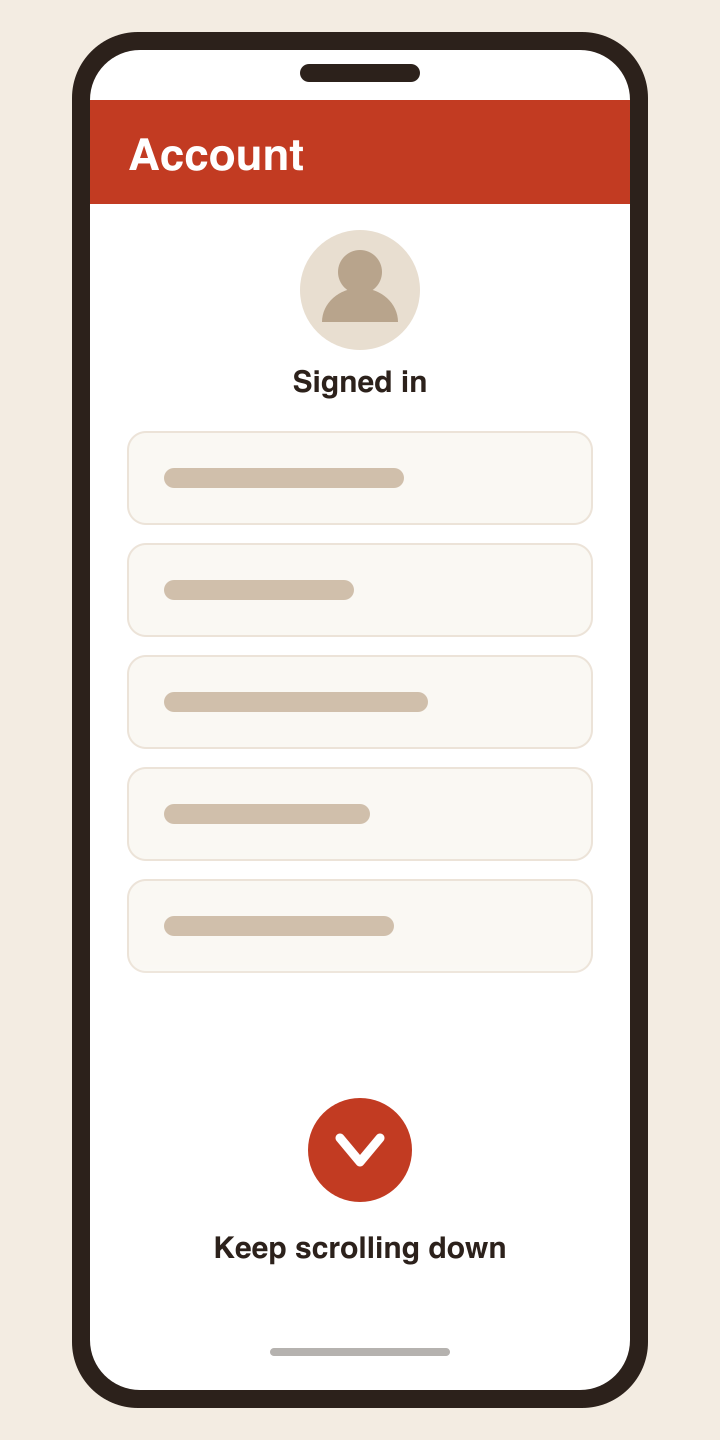
When you reach the end of the page you will see Sign Out.
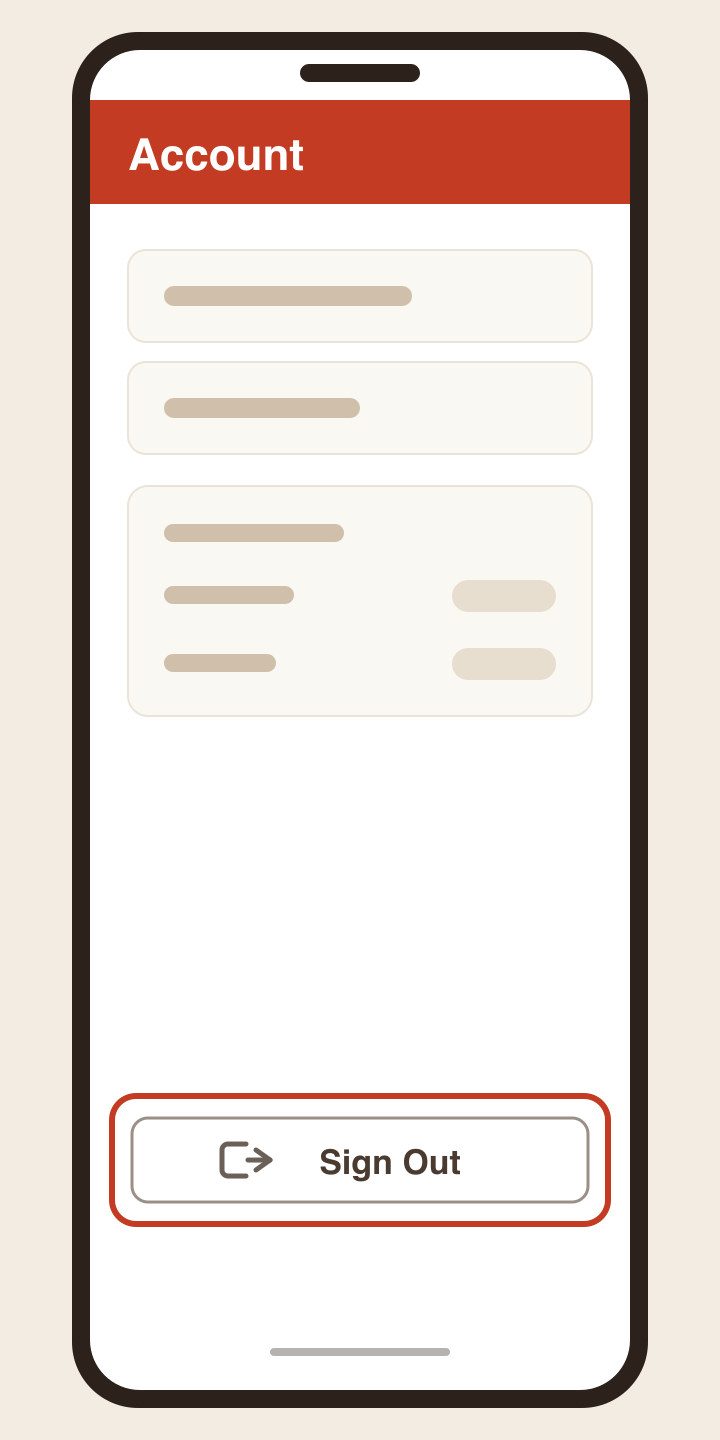
Tap it and you will be returned to the welcome screen.
On some phones the button sits close to the bottom edge of the screen, near the home bar, and can take a deliberate tap. If your first tap does the wrong thing, scroll down once more so the button moves up slightly, then tap it again. We have given it more breathing room in a coming update.
Signing back in as a different account
This is the part worth slowing down for. If you are signing out because you want to get into a different ElkNut account, use the Log in option with your email address and password.
Avoid the “Sign in with Google” and “Sign in with Apple” buttons unless you are certain which account they belong to. If the address behind that button has never been used with ElkNut before, it does not sign you into your existing account — it creates a brand new, empty one. That is the single most common way people end up looking at a free account and wondering where their subscription went.
If that has already happened, nothing is lost. Your subscription is still attached to your original account, and we can move your sign-in address across to whichever email you would rather use. Get in touch with both addresses — the one you want to keep, and any others you may have signed up with — and we will sort it out.
If you cannot remember which email holds your subscription
You can check without contacting anyone. Open elknut.app in a phone or computer browser and sign in with each address you might have used. Whichever one shows your PRO access is your real account.
Once you know which it is, sign in with that address in the app and you are back where you should be.
Related
- Restore your purchase — if you are signed into the right account but premium content still looks locked
- One-time purchase & subscriptions — how older purchases are handled